Patient booking workflow: Photo ID upload
Last updated: October 15, 2026
After patients select a time and date for their visit, and enter their information (Name, DOB, phone number, email address, insurance), they can be taken to a screen where they will upload a photo of the front and back of their ID card.
This is an optional feature. You can select where you'd like for the front and/or back of the card to be a mandatory field for the patient to book the visit.
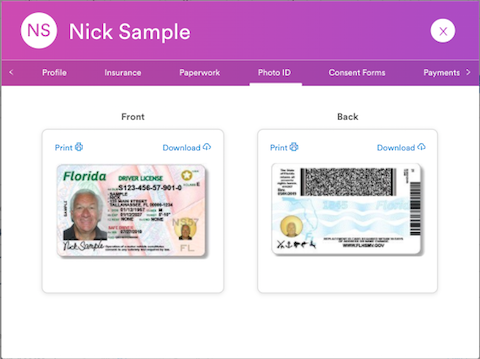
The clinic staff can access the ID photos by going to the Solv queue, then
Click on the patient's name
Navigate to the Photo ID tab
Download and/or print the front and back of the ID card
Please keep in mind adding mandatory features may decrease booking conversion as it creates an obstacle for the patient if their ID card is not handy. Photo ID can always be requested by email to patients who do not provide it during the booking flow.