How to work with payment plans
Last updated: October 12, 2026
ℹ Note, we sometimes use the terms bill and invoice interchangeably. They refer to the same thing.
Overview
Payment plans let patients pay an eligible invoice balance in scheduled installments instead of paying it all at once. Installments are charged automatically to the payment method associated with the plan. Depending on the clinic’s settings, plans may be weekly, bi-weekly, or monthly.
Payment plans are optional and must be enabled for the clinic location. Eligible plans can be set up by clinic staff in the provider app or by patients in the consumer app. What plans are offered depends on the location’s configuration and the invoice’s balance and timing.
Enrolling a bill in a payment plan
If you have a patient who is struggling to pay a large bill, you can enroll them in a payment plan directly from the Solv invoice-details page for their pending bill. You will find the option in the payment-collection panel, visible when you select “Collect payment” on the page.
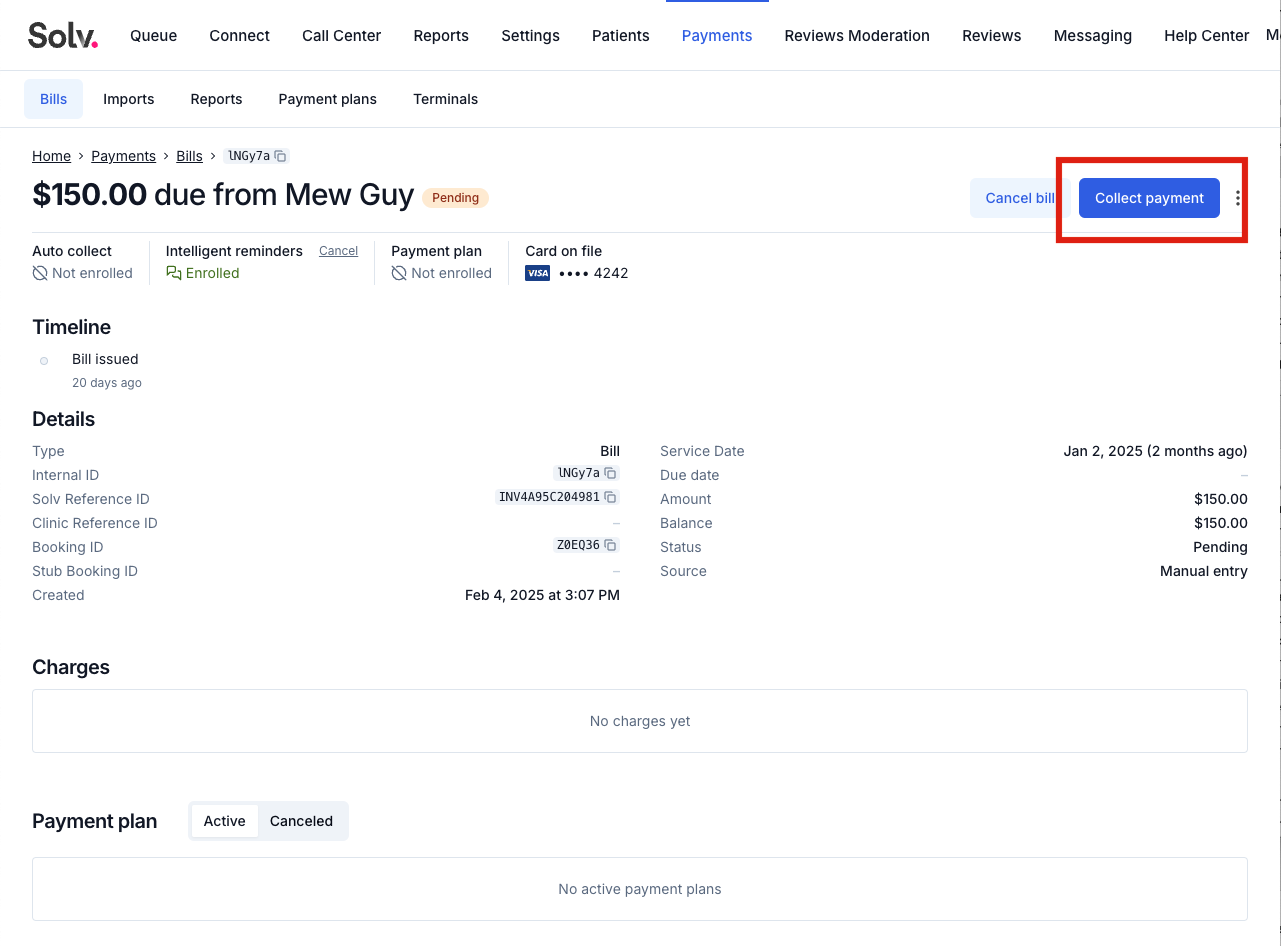
You will see an option on the payment page if the bill meets the requirements for being enrolled in a plan. The requirements vary depending on payment-plan configurations that may be unique to your clinic location or group.
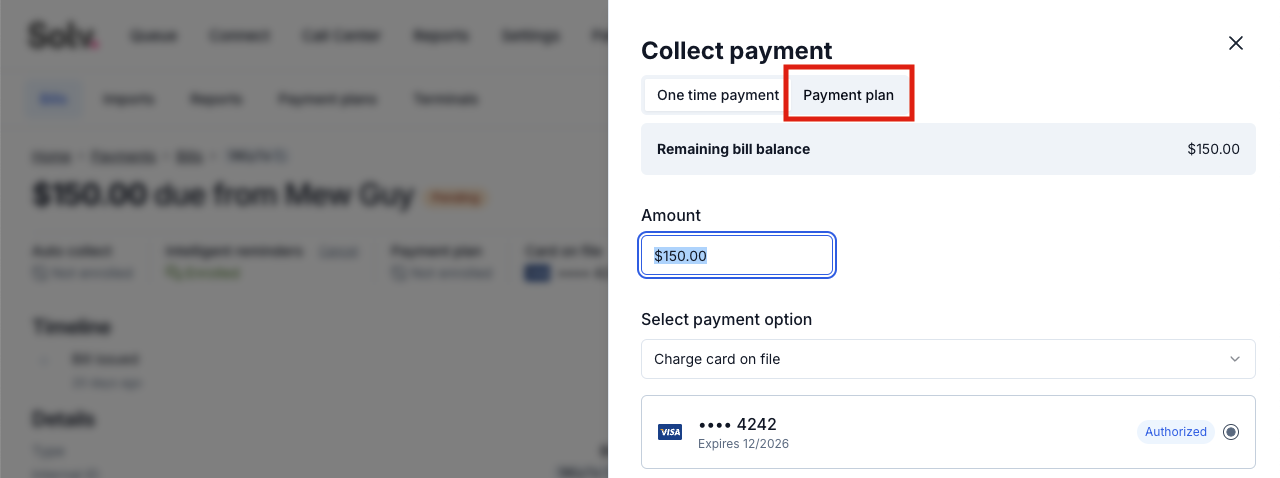
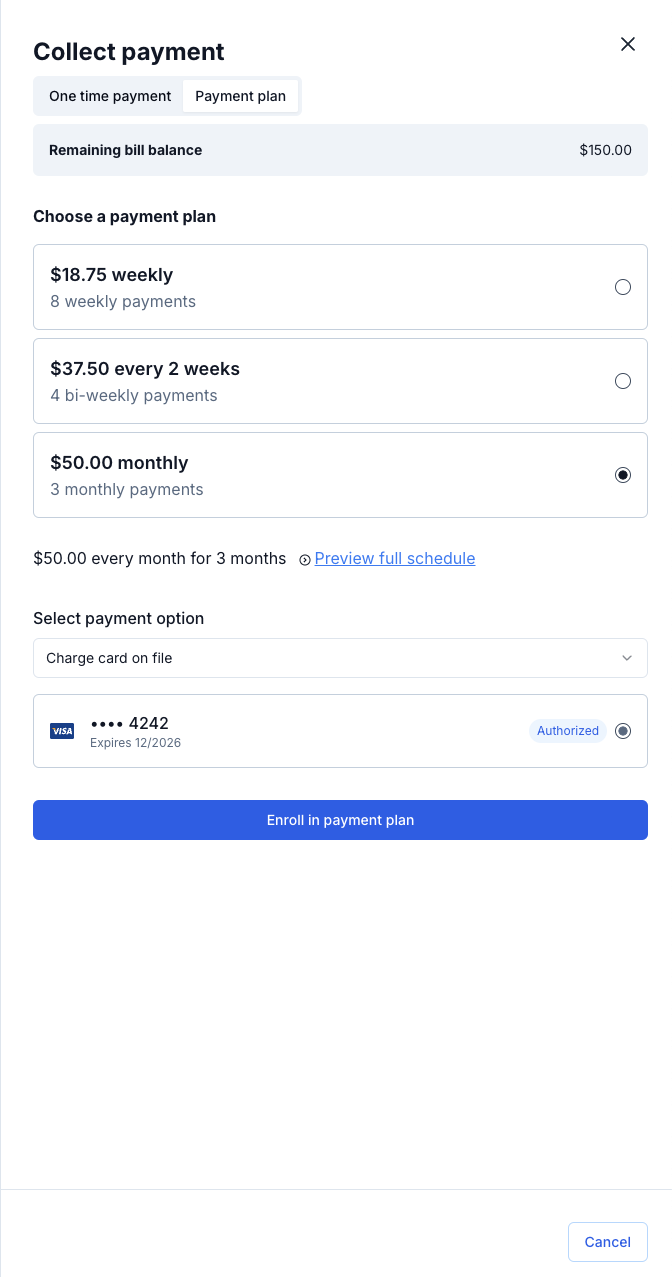
Actually enrolling in the plans is simple! You will be given a small set of plan options that you can choose from.
ℹ Note, in addition to the default plan options, you can also build a custom plan with a number of installments and duration tailored to your patient.
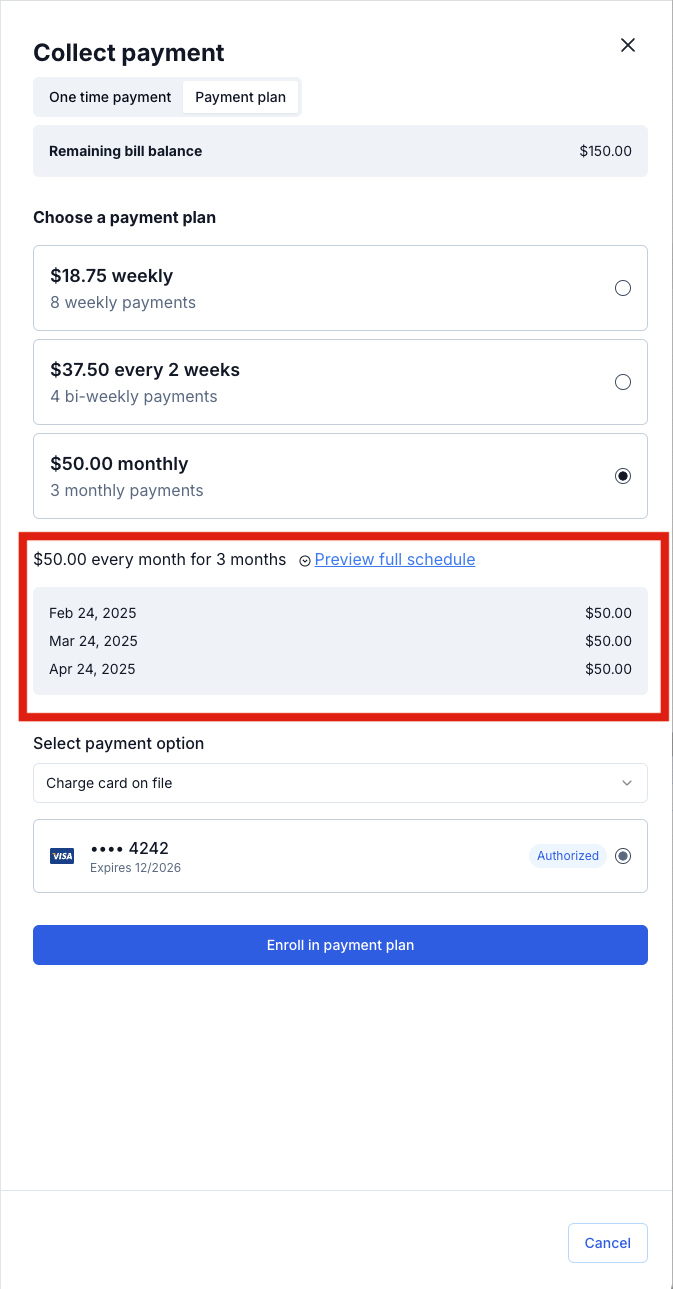
Plan details are also optionally available to provide you with more context to explain the plan structures to your patients. The details let you know exactly how much will be charged on what dates. By default, the first installment is charged the day that you enroll the invoice in the payment plan, though you can choose a future start date instead when setting up a custom plan.
Plans require that you have a valid card on file. You can choose from an existing card on file, or add a new one as part of the enrollment process.
Make your selections, get a card on file, and click the “Enroll” button. That’s it! The plan will be created and you will see the details now integrated into the invoice details page.
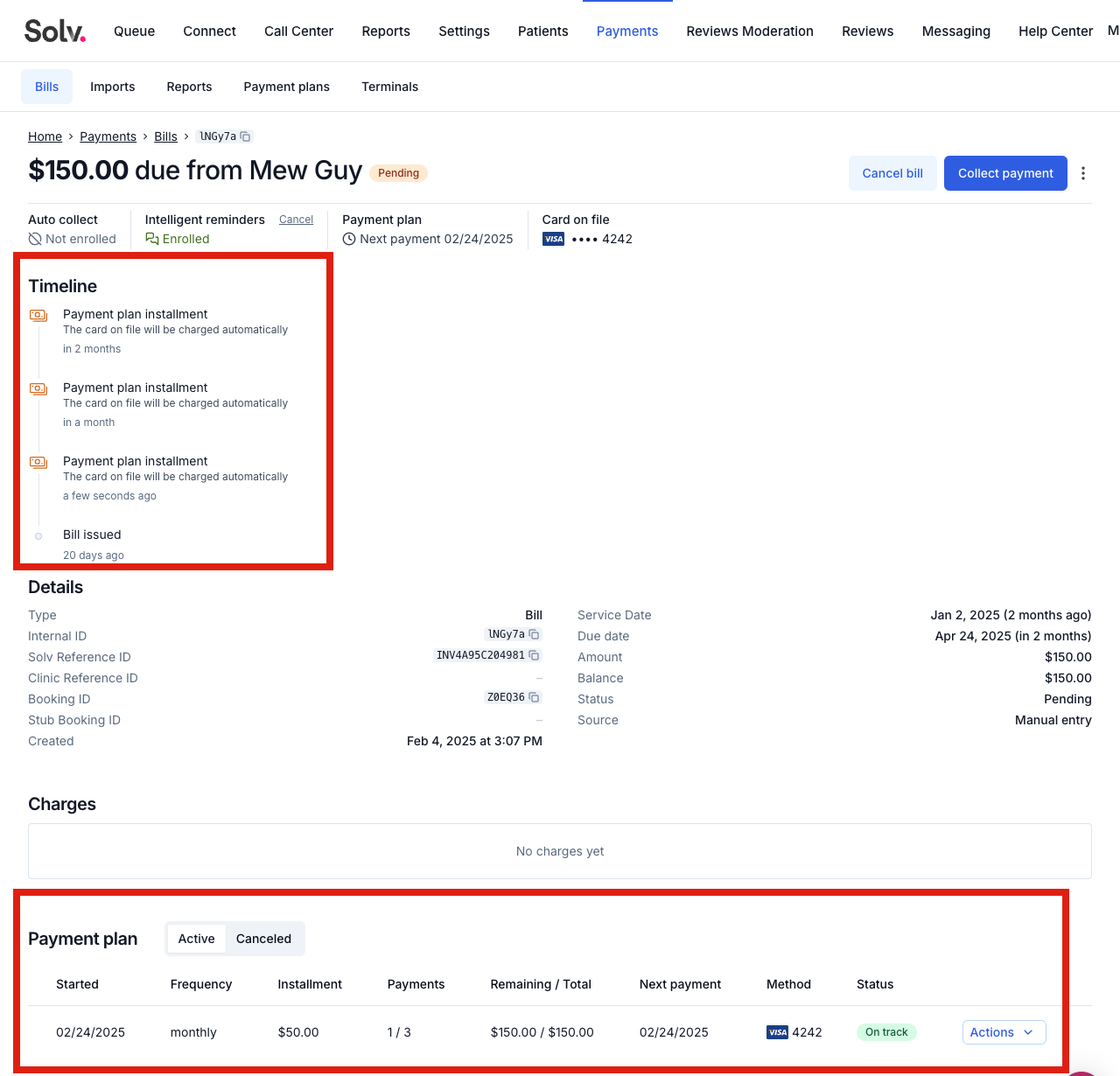
At this point the plan is set and there’s nothing more that you need to do. Solv will automatically attempt to charge each installment to the card on file on the dates outlined for the plan. The patient will receive SMS notices about the plan and each of the individual payments.
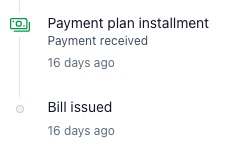
As payments are made, the timeline on the bills page will automatically update to reflect them.
Early payoff
Patients or clinic staff can pay the remaining invoice balance early through the invoice’s payment options. Important: any manual payment made outside the plan—including a partial payment—cancels the plan and clears its pending installments. If the patient wants to make an extra payment without stopping scheduled installments, do not process it as a separate out-of-plan payment.
Canceling a payment plan
The patient or clinic staff can explicitly cancel a plan from the invoice or plan-management view. When a plan is canceled, pending installments are cleared, plan reminders stop, and the patient receives a cancellation message. The patient remains responsible for any unpaid invoice balance and can pay it using the available payment options.

The plan will be automatically canceled at that point and no more installments will be collected. The patient will still be responsible for the remainder of the bill and can pay through any of the existing payment options in Solv.
Patients can manage their own plans
Patients can view and manage plans from the invoice page in the consumer app. Plan enrollment is shown only when the invoice qualifies under the clinic’s settings.
The available offers may depend on balance tiers, minimum installment amounts, and maximum plan duration. As a default, balance tiers begin at $50, but clinics can configure tiers. The clinic’s consumer timing setting also affects when an offer appears: with Standard timing, it appears after 21 days unpaid or 7 days before the due date; with Immediate timing, it appears when the patient opens the invoice.