Creating new user accounts
Last updated: October 18, 2026
If a new user needs to have access to the Solv platform, creating an account can be done in a few simple steps!
Please note new user accounts can only be created by an individual who has a Manager role.
To add a new Solv user, go to Settings > Users > Add new user and you'll then be prompted to enter the user's
First name
Last name
Email address (this will be their username)
Confirm email address (must match the Email address field)
Role (Front Office, IT Admin, Provider, Manager)
Then select the location(s) that the user needs access to, and then click on the blue "Save" button.
Each user should have their own account. Multiple users can have the access to the telemed queue (both front office and provider) at the same time. The front office staff can add notes that the provider will then be able to see when they’re in the queue, but only one user can be in the call with a patient at a time.
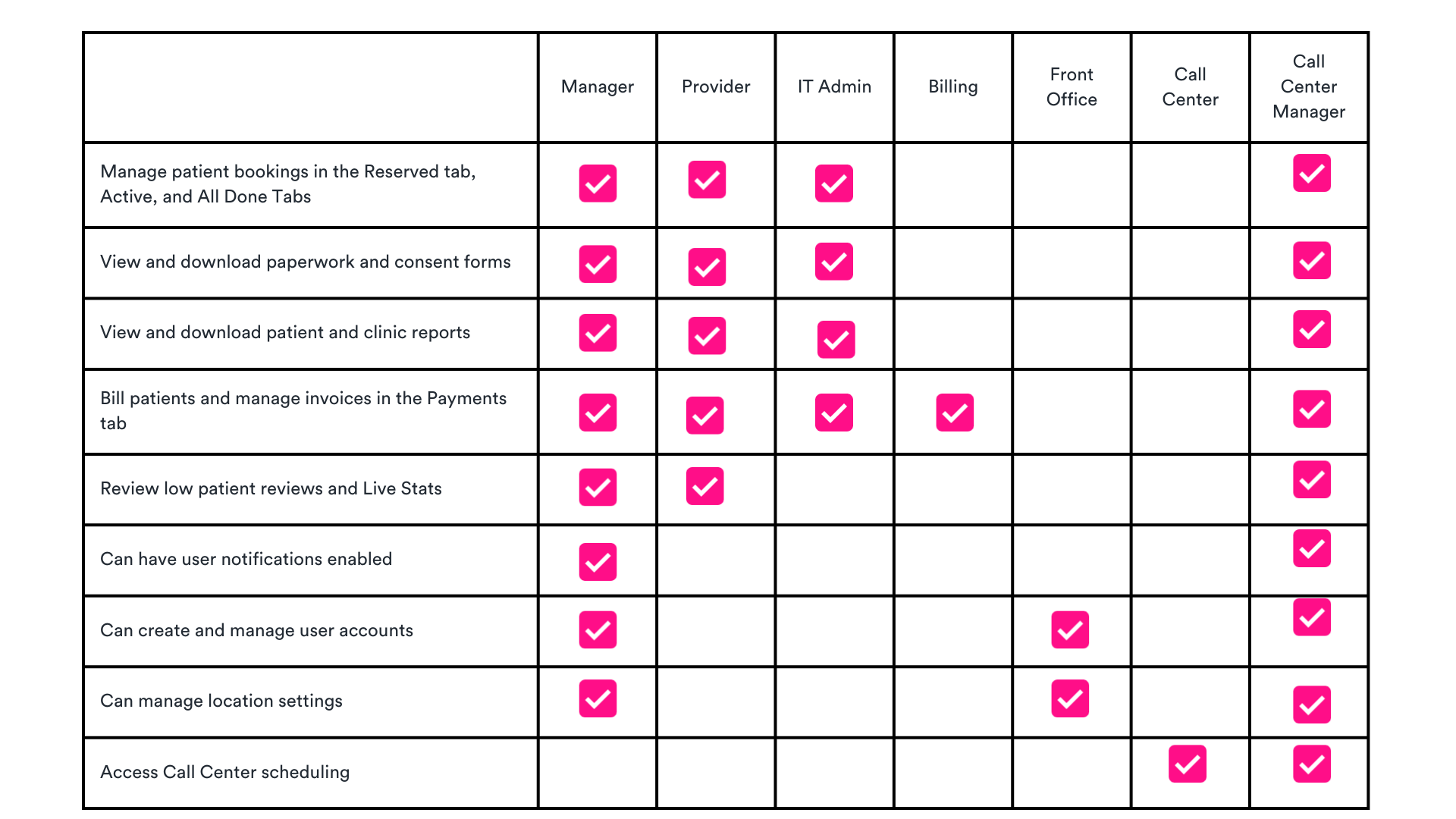
There are 6 user roles: Front Office, Manager, Provider, and IT Admin
Notifications available to select (only for Manger, Provider, Billing, and Call Center Manager user roles):
Telemed booking email - receive an email when a patient schedules a Video Telemed visit
Telemed booking text - receive a text message when a patient schedules a Video Telemed visit
Daily review summary - receive a daily email with a summary of patient reviews
Weekly review summary - receive a weekly email with a summary of patient reviews
Low feedback - receive an email when a patient leaves a review that is 1, 2, or 3 stars following their Video Telemed visit
Payments - receive an email when a patient has paid an invoice sent through Solv